How to Showcase Website Transformations with Before and After Sliders
A strong portfolio does more than show a polished final image. It helps a prospective customer understand what changed and why the work mattered. Designers, photographers, builders and renovation teams can use side-by-side images, interactive sliders, curated galleries and short video comparisons to make that transformation easy to see.
Choose a format that fits the story
| Format | Best for | Watch for |
|---|---|---|
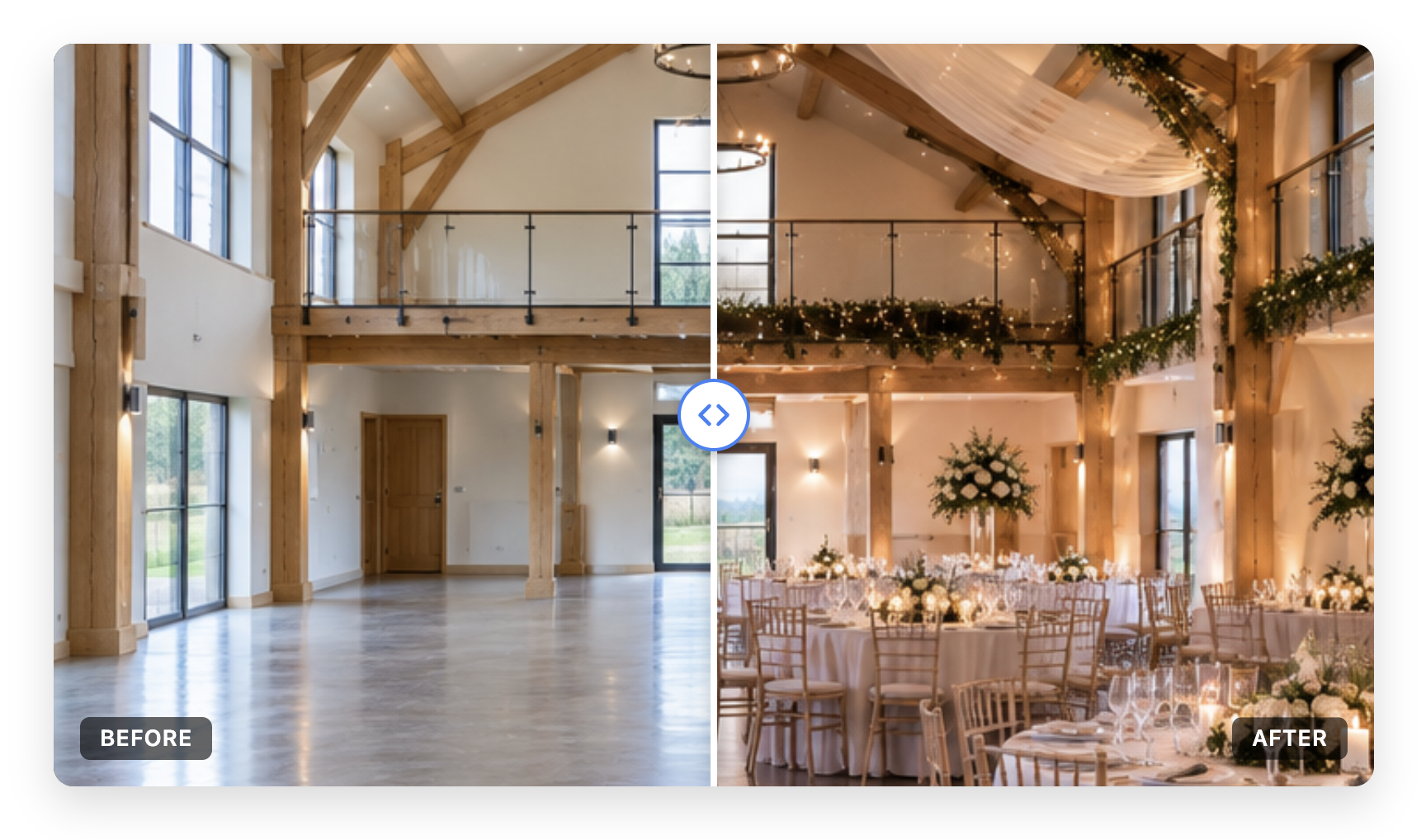
| Before-and-after slider | One subject photographed from the same position, such as a room, garden or retouched portrait. | Keep framing consistent and make the divider obvious and usable on touch screens. |
| Project gallery | A sequence of different rooms, angles or stages from a larger job. | Use captions to explain the project; a gallery alone may not make each change explicit. |
| Video comparison | A moving subject, walkthrough or process where motion adds useful context. | Keep clips short, provide controls and captions, and consider bandwidth and reduced-motion preferences. |
Make the transformation credible
Whenever possible, capture the before and after from the same angle, at a similar distance and in comparable lighting. Label the stages accurately, explain the scope of the work and avoid edits that exaggerate the result. For client projects, obtain permission before publishing identifiable people, homes or private spaces.
Build a portfolio visitors can browse
- Lead with a representative project and a concise caption explaining the brief.
- Use a slider for the direct comparison, then add a gallery for supporting views or different project stages.
- Keep image dimensions consistent within a gallery, compress files and add descriptive alternative text.
- Test the experience on mobile, check that controls are keyboard accessible and confirm the page still loads quickly.
Use video where movement matters
Video can make sense when the transformation includes movement: a room walkthrough, a camera move across a finished build or a restoration process. A paired video comparison is useful only when both clips can be aligned and the difference remains understandable. If matching motion is difficult, show a still-image slider and place the walkthrough beside it instead.
Add comparisons to WordPress
Conobe Before & After Slider Pro keeps a pair of images together, adds a movable divider and lets you embed the result in a case study. Its visual editor supports image or video media, layout and labels, with a live preview and shortcode placement. Turn your next project into an interactive portfolio piece with Conobe Before & After Slider Pro.