How to Create Before and After Image Comparisons in WordPress
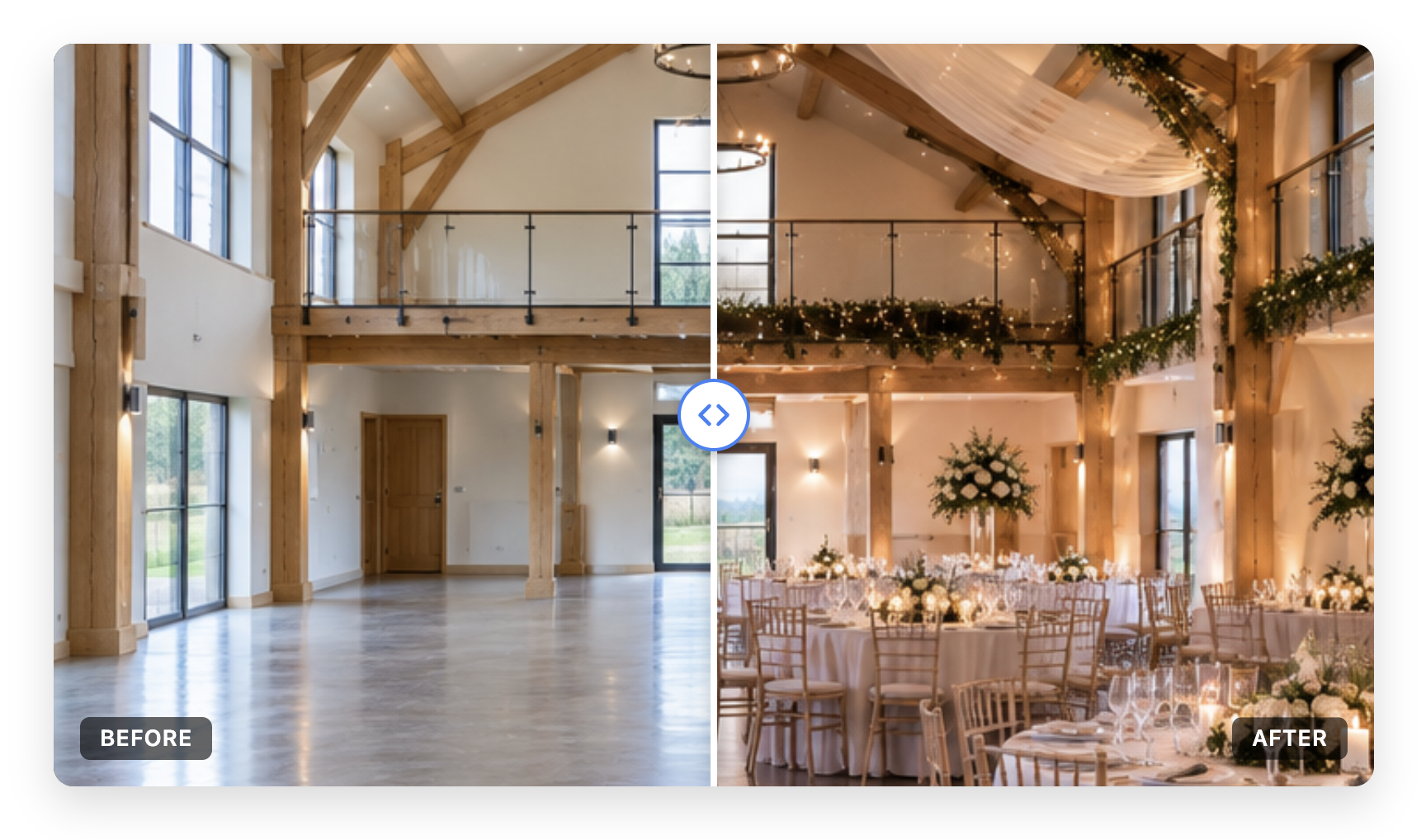
A before-and-after slider lets visitors compare two versions of an image in the same space by moving a divider. It works well for renovation reveals, photo retouching, landscaping and product transformations, provided the images show the same subject from a consistent viewpoint.
Choose the right comparison setup
For a direct image comparison in WordPress, Conobe Before & After Slider Pro provides a movable divider, before-and-after labels, responsive layouts and a visual editor with a live preview. If you are preparing several examples, its grouping and column options can help you organise them. Test the published page on a phone as well as a desktop.
Prepare a convincing image pair
- Use the same crop, aspect ratio and camera position for both images wherever possible.
- Export images at an appropriate size and compress them without obscuring the change you want to show.
- Avoid putting important text or details directly under the divider, and add meaningful alternative text in the media library.
- Use images you own or have permission to publish, and make sure the comparison represents the work accurately.
Build and place the slider
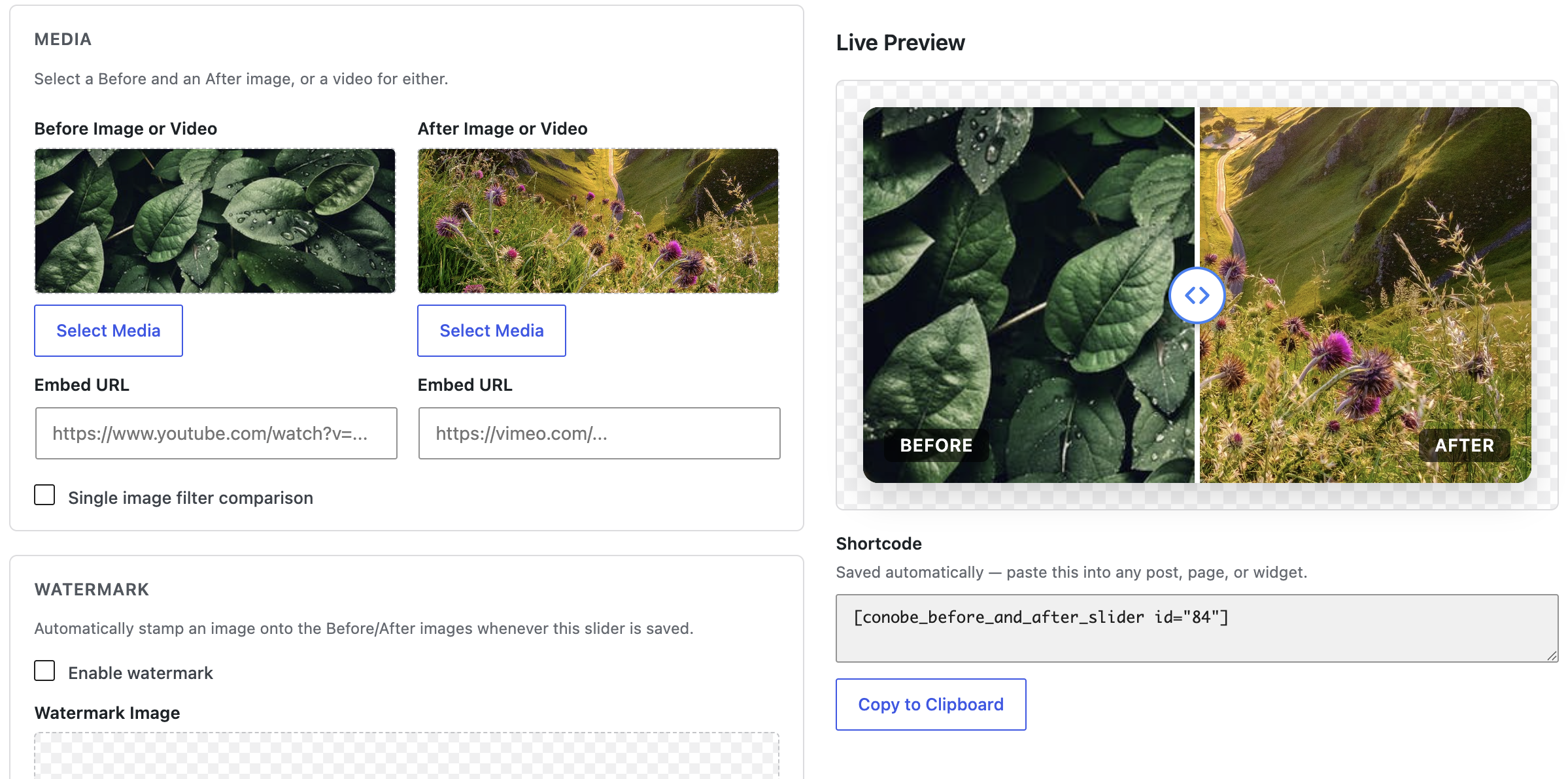
In Conobe Before & After Slider Pro, create a comparison and select the before and after media. Add concise labels, set the initial divider position and preview the result. The visual editor shows the image pair beside its live comparison and provides a shortcode to place the saved slider in a page or post.
Style for clarity, not decoration
Choose a divider and handle that remain visible over both halves of the image. Keep labels readable, use enough contrast and avoid a fixed height that crops the subject on smaller screens. Use the slider's styling options to match the site without making the interaction hard to find.
Put the comparison in context
Add a short caption describing the project, the change and when the images were taken. A slider is best for one direct visual comparison; use a gallery when visitors need to browse several separate projects. Create your first image or video comparison with Conobe Before & After Slider Pro.